
Checking visitors
A visitor with a code
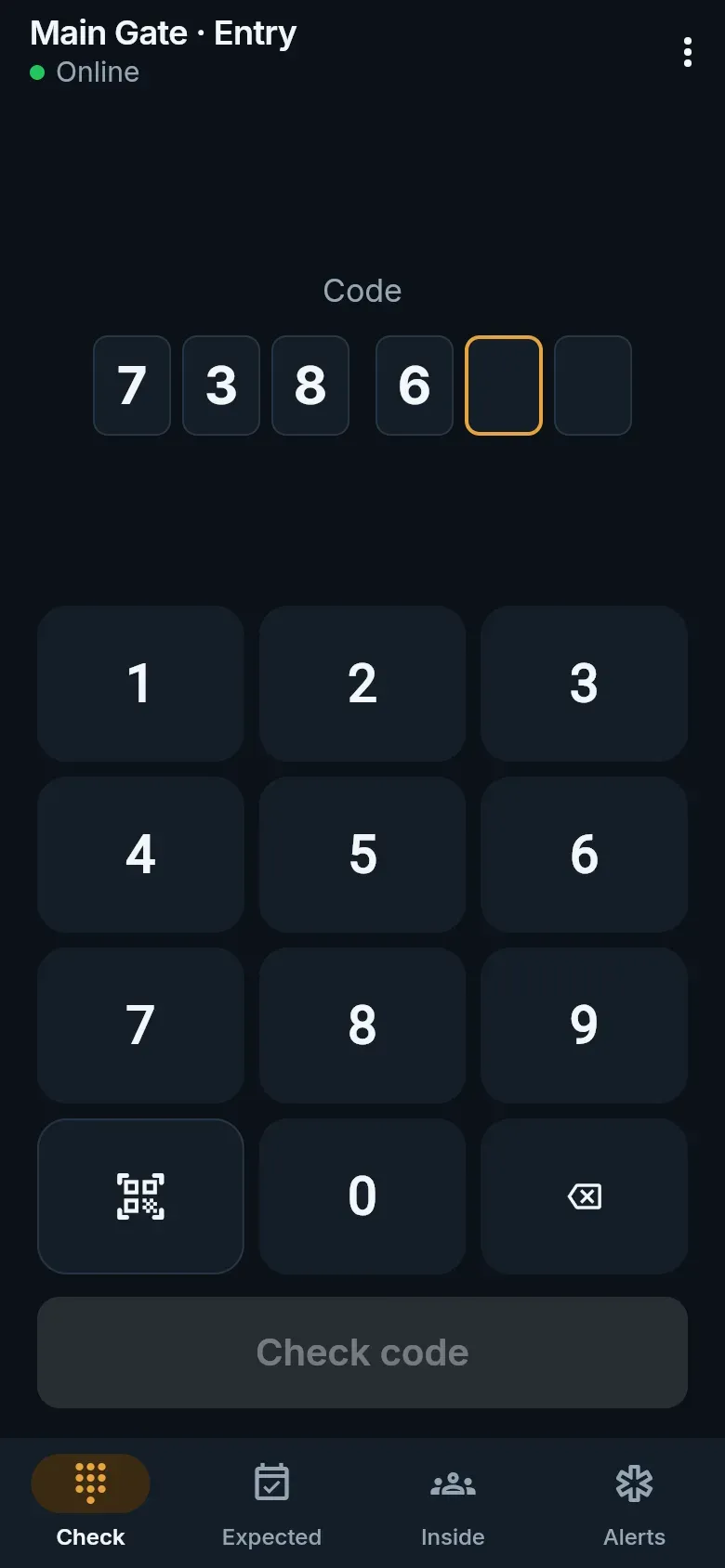
Section titled “A visitor with a code”- Type the six digits the visitor gives you and tap Check code.
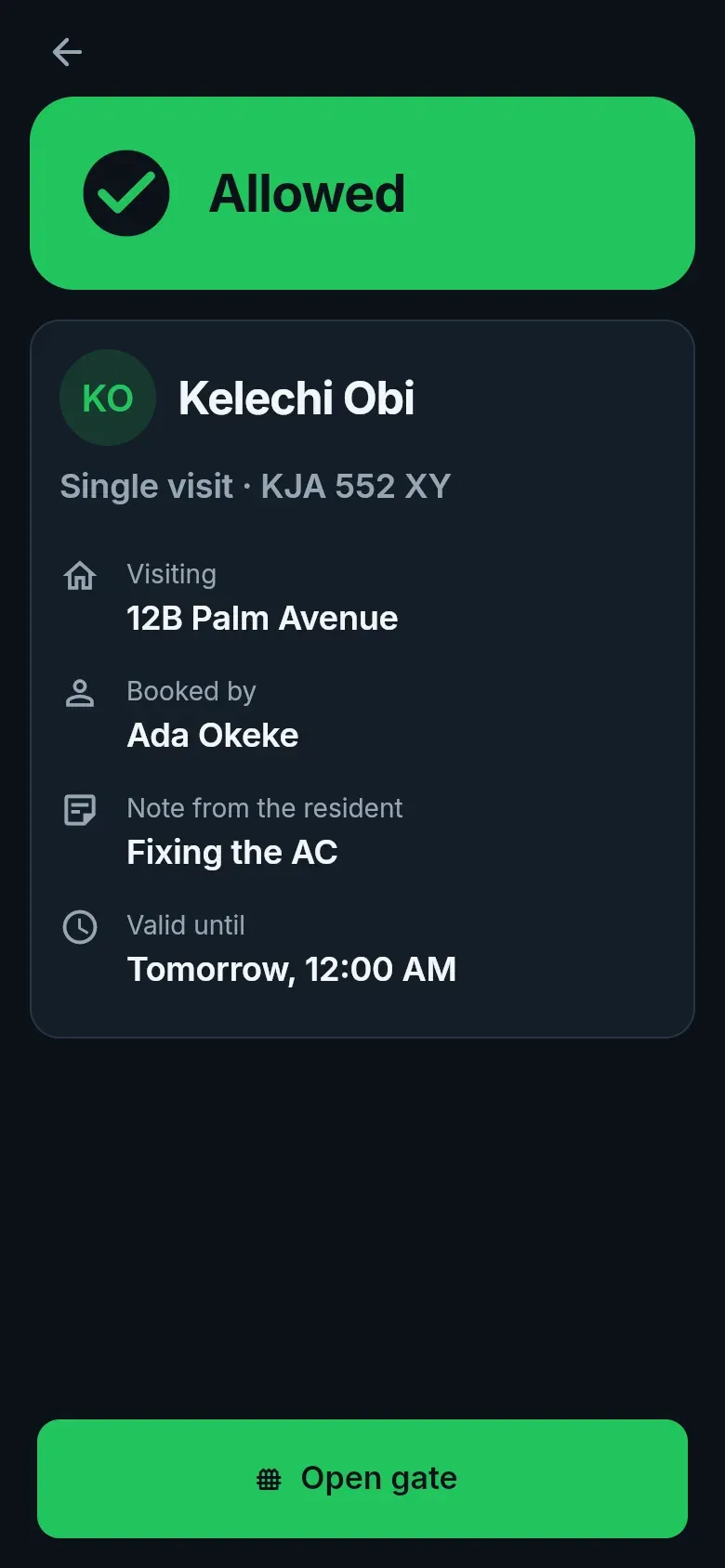
- Read the answer. Allowed shows who they are, which home they are visiting, who booked them, the car and how many people are coming. Anything else says why not.
- If allowed, tap Open gate. The household is told their visitor has arrived.

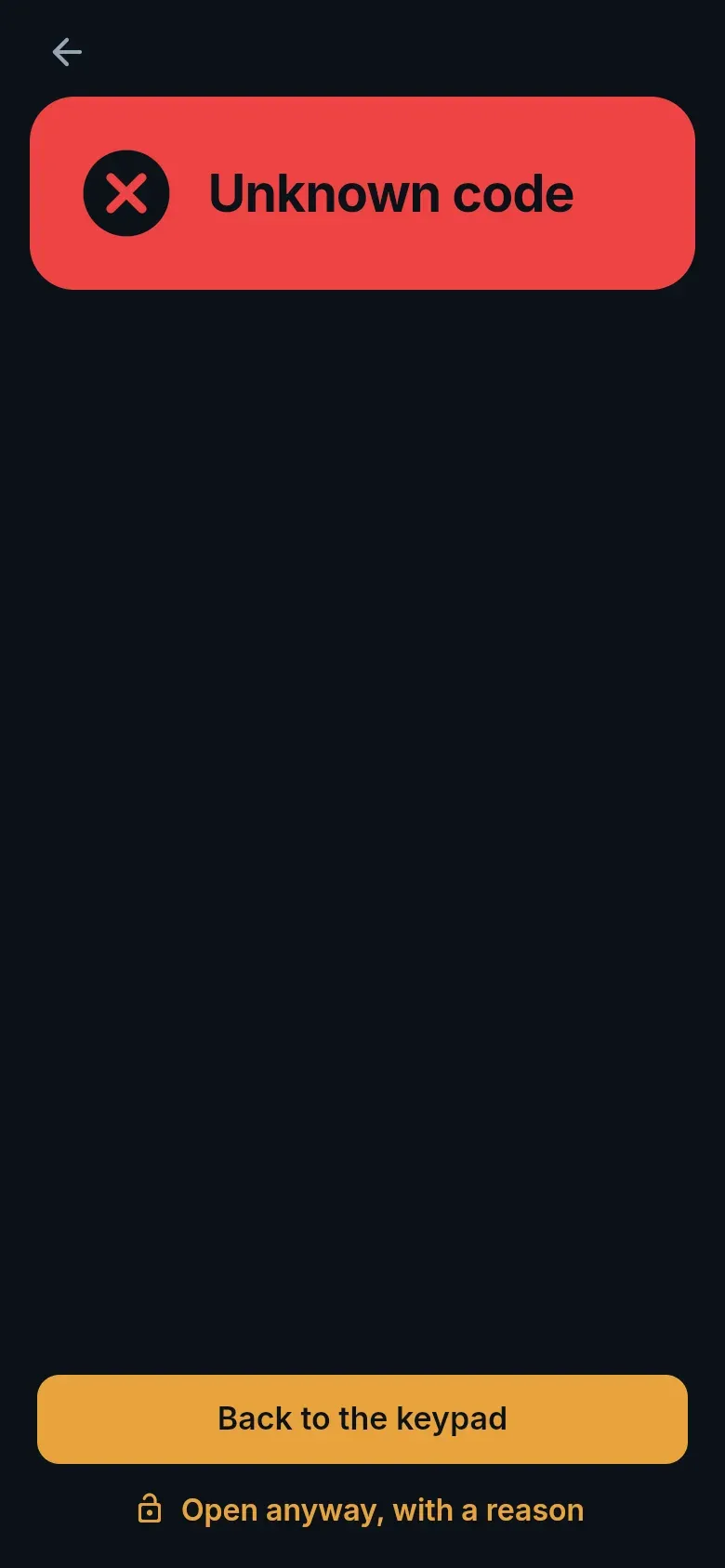
A code is refused if it is unknown, expired, already used, outside its days or hours, cancelled, or if the visitor is on the estate’s watchlist. During a lockdown or evacuation visitor codes are refused at entry.
A QR pass
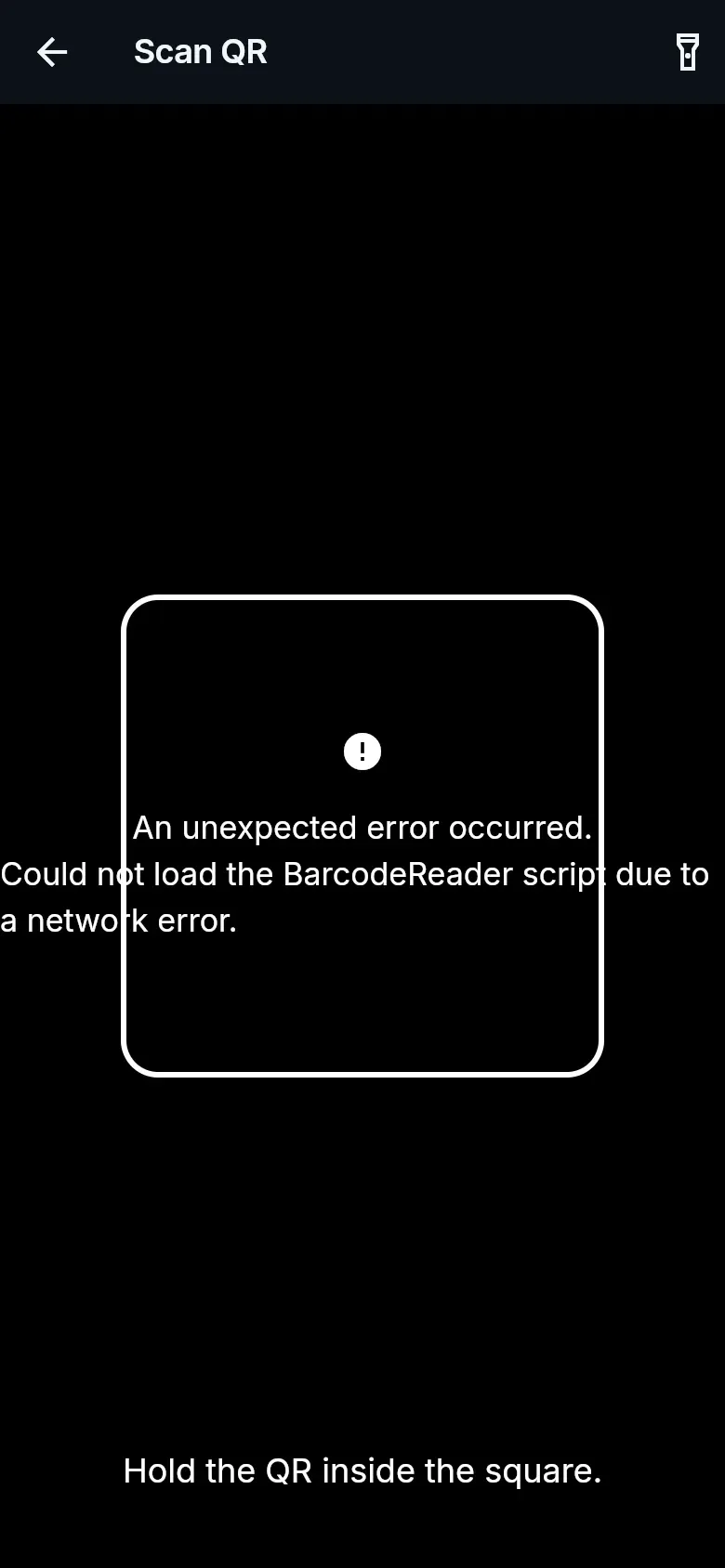
Section titled “A QR pass”Tap Scan QR and point the camera at the visitor’s QR. It is checked the same way as a typed code — and residents’ own gate QR works here too.
Checking a plate or tag
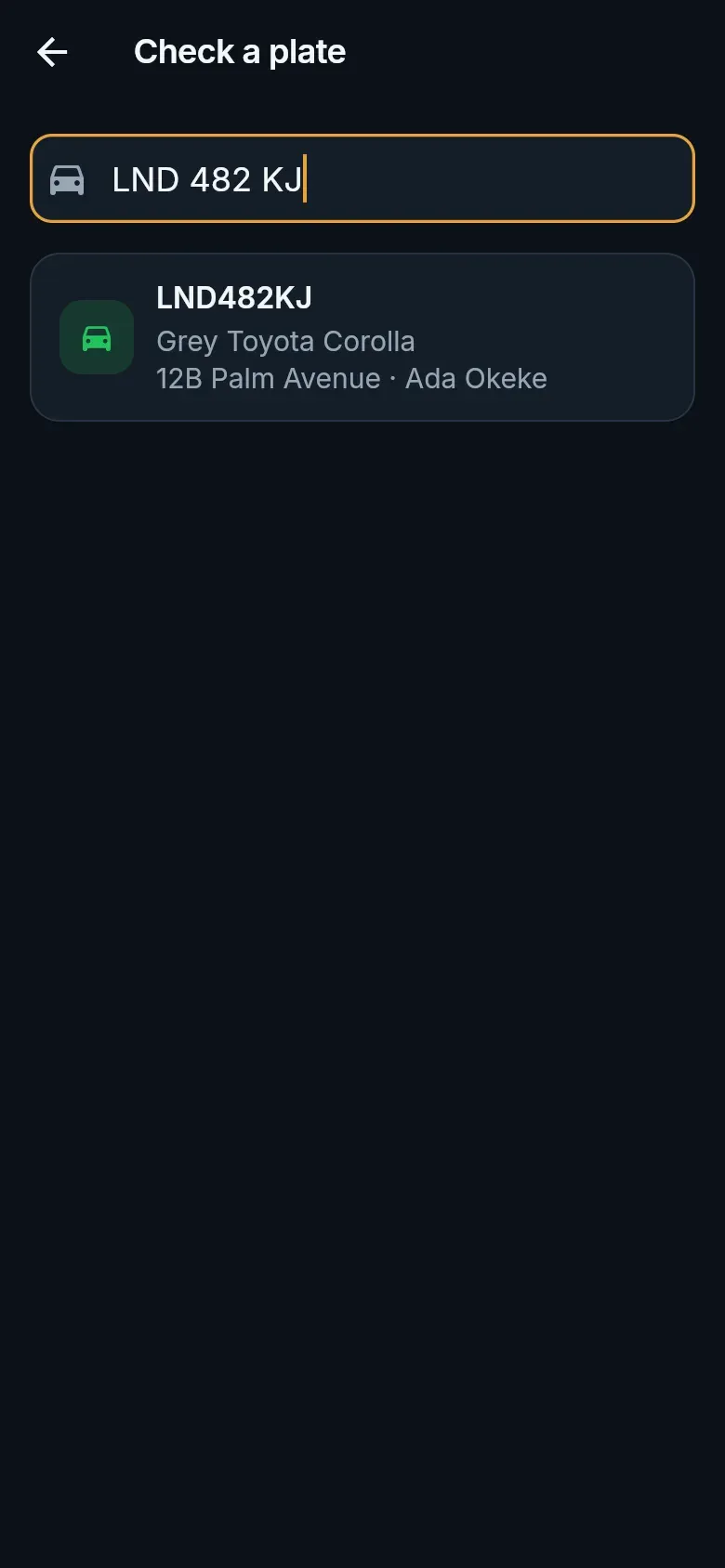
Section titled “Checking a plate or tag”From the menu, Check a plate finds a registered resident car by its plate or tag number, with its owner and home.
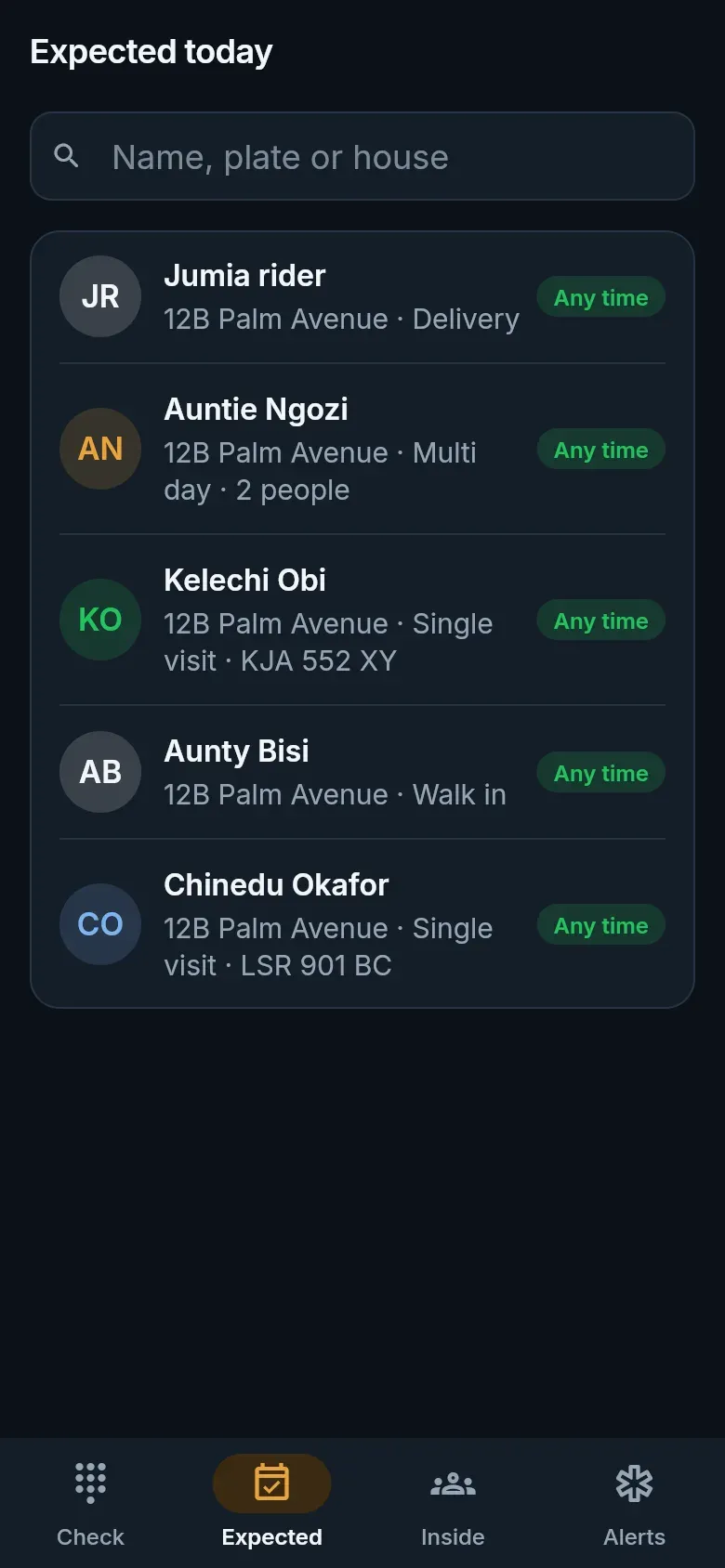
- Expected — everyone booked for today, searchable by name, plate or home.
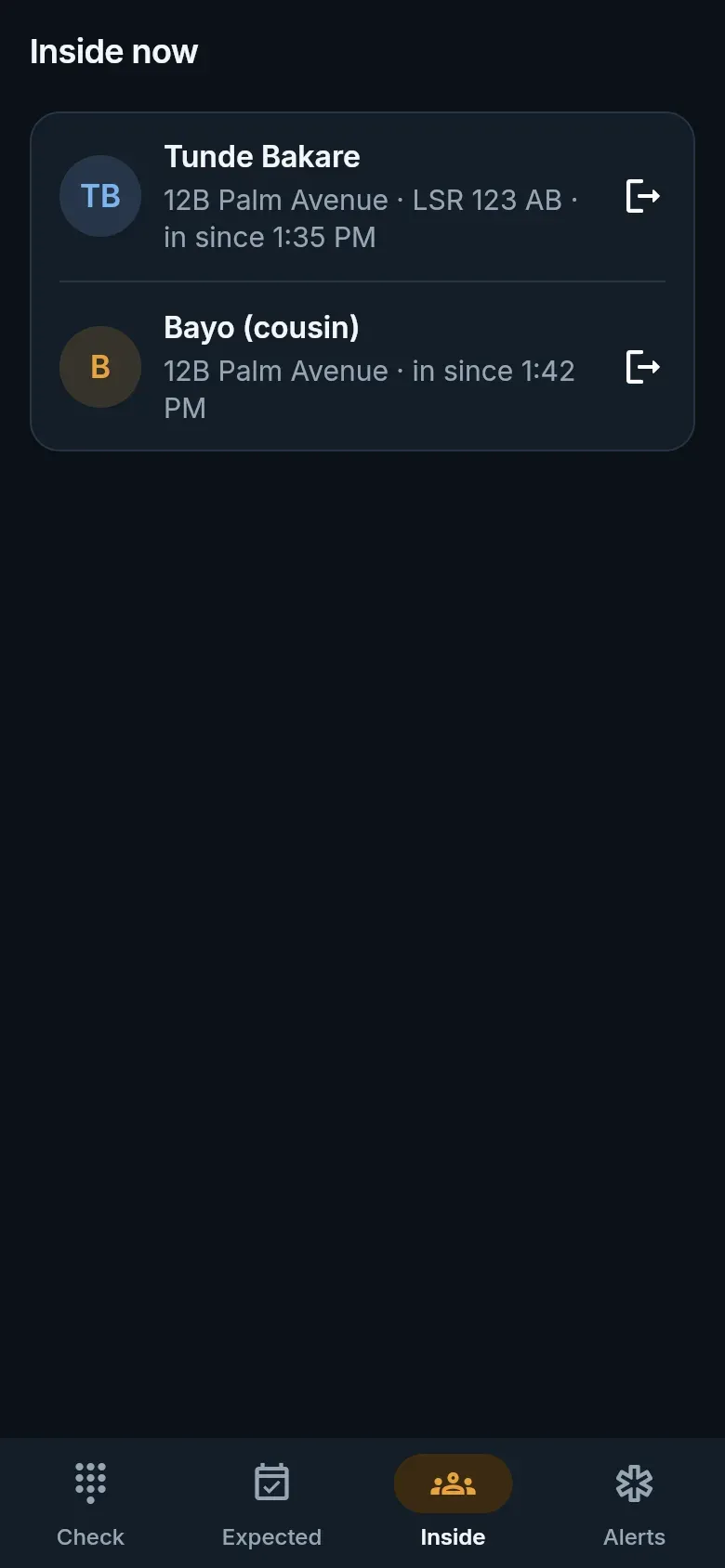
- Inside — visitors inside now; overstaying visitors come first. Check someone out when they leave.
- Alerts — panic alerts, newest first.
A visitor without a code (walk-in)
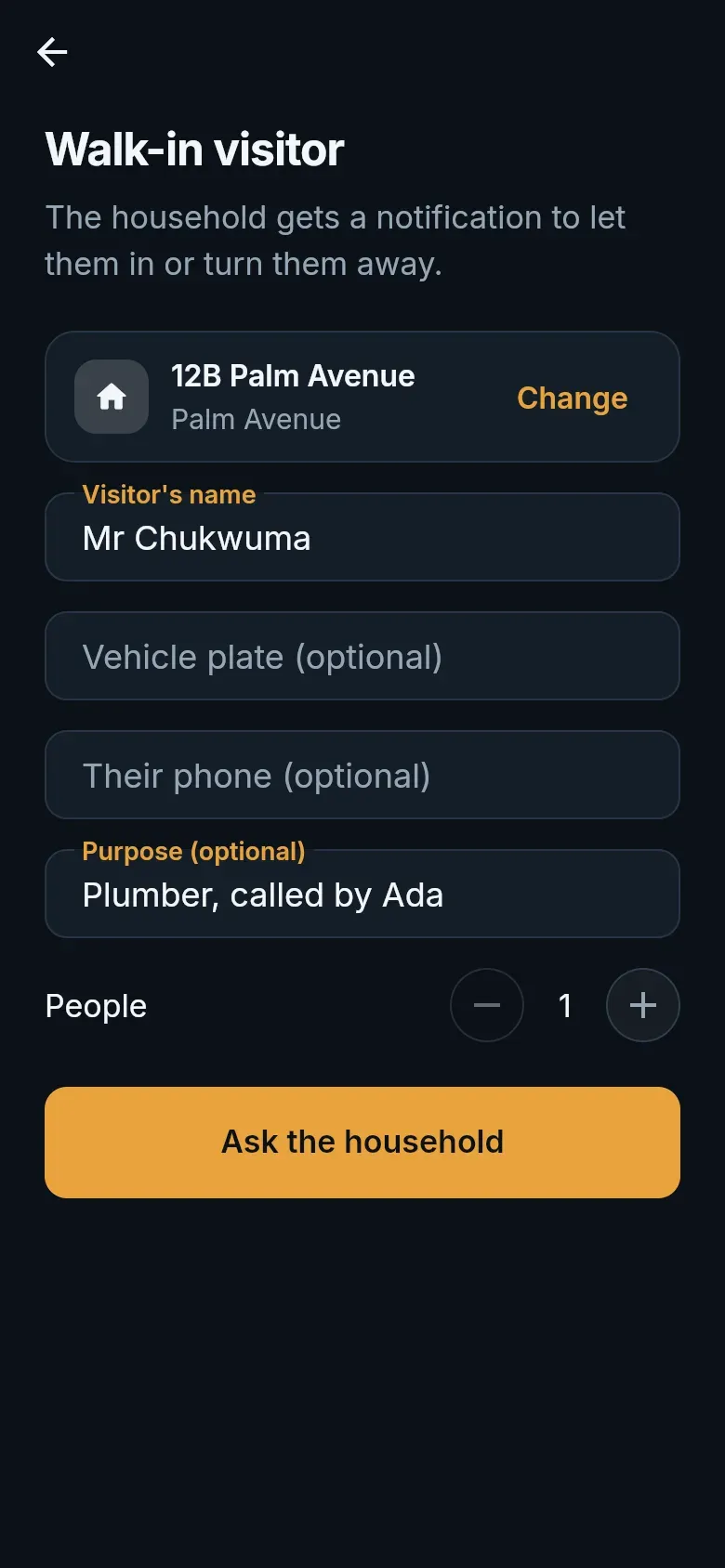
Section titled “A visitor without a code (walk-in)”- From the menu, choose Walk-in visitor.
- Find the home they are visiting, and enter their name, and optionally their plate, phone and purpose.
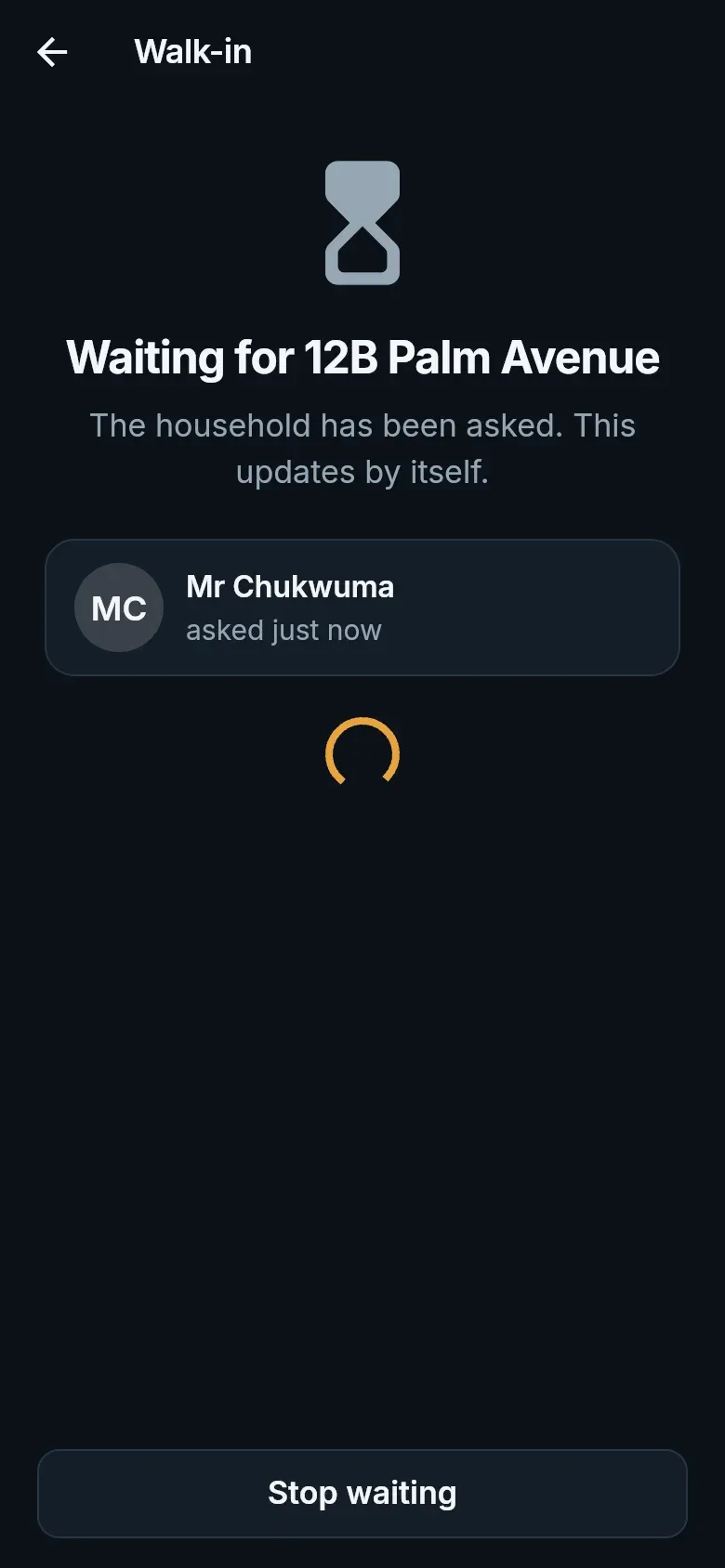
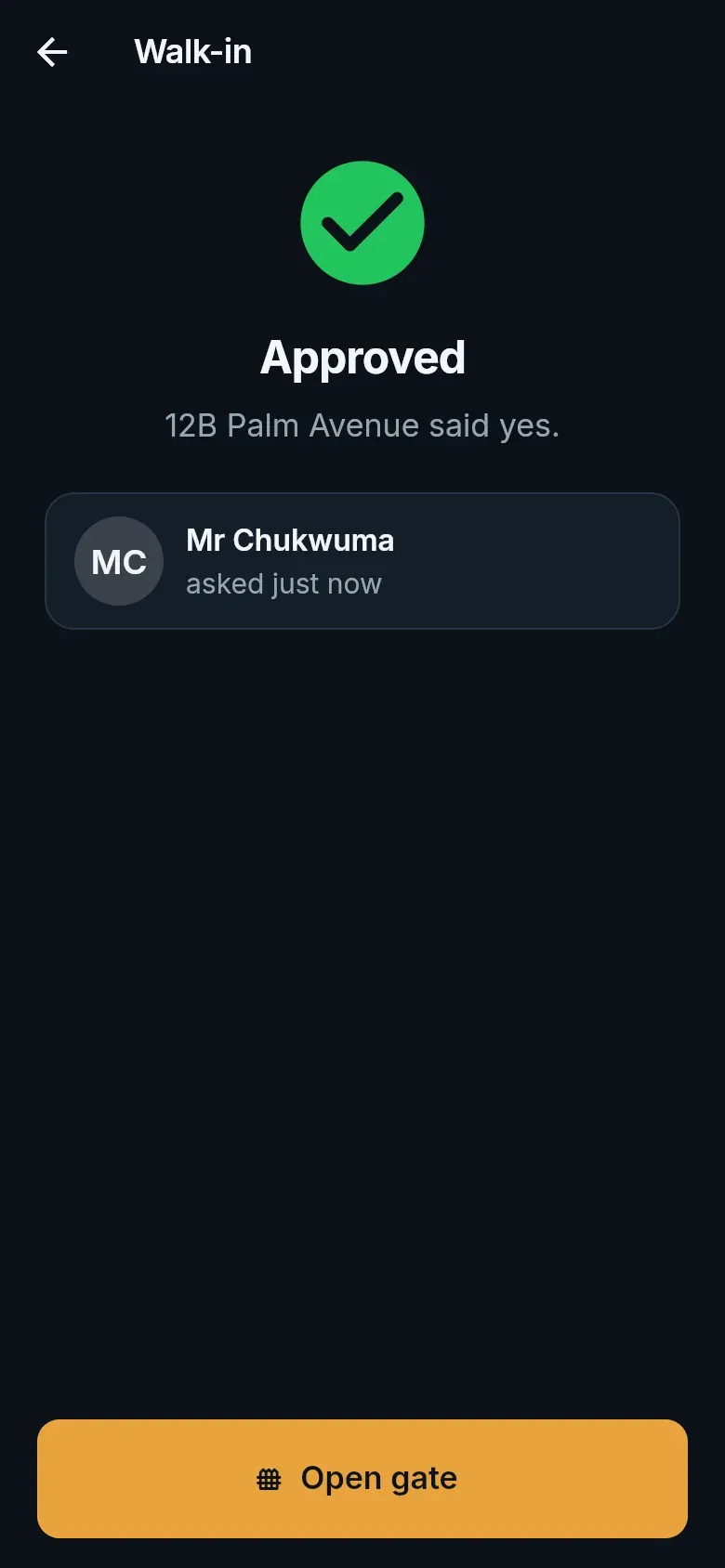
- Tap Ask the household. Everyone in the home gets the request on their phone; the screen updates by itself when someone answers.
Opening without a code
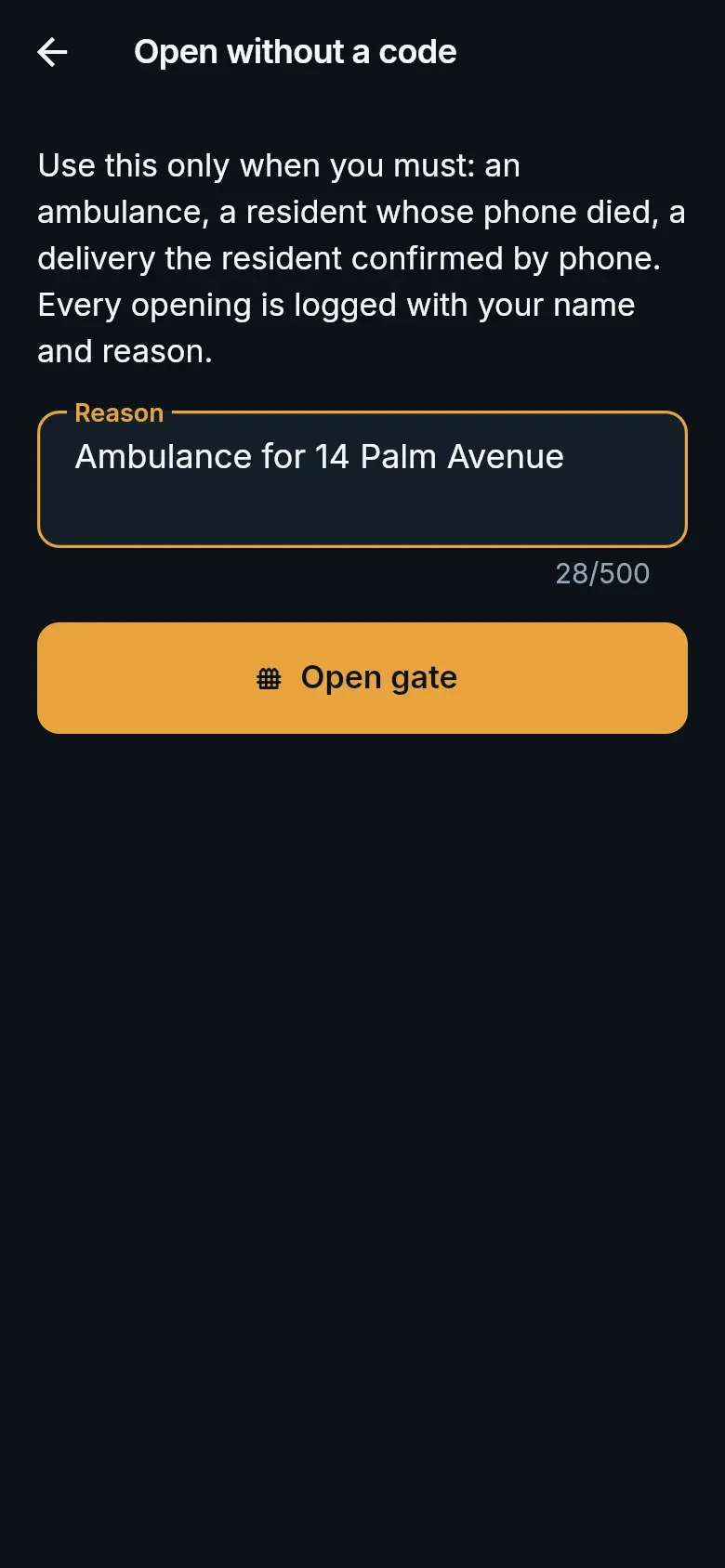
Section titled “Opening without a code”For an ambulance, the fire service, or a resident whose phone has died, choose Open without a code from the menu and give the reason. Every opening is logged with your name and reason, and the estate office sees it.